Figma has long been the leading tool for designers, thanks to its powerful features and user-friendly interface. However, the experience of developers working with design mockups has often left much to be desired. Manually extracting spacing, colors, fonts, and components from designs was time-consuming and increased the risk of errors. Everything changed with the introduction of Dev Mode in Figma, which unlocked a new level of integration between design and code, making the process faster and more efficient.
Dev Mode is a feature in Figma designed specifically for developers. Its main purpose is to streamline the transition from design to code, ensure pixel-perfect implementation, and automate as much of the process as possible. Dev Mode allows developers to inspect design elements in detail, interact with components, and generate ready-to-use code snippets for various platforms.
Key Features of Dev Mode:
- Viewing and exporting fonts, colors, shadows, radii, and spacing.
- Code generation (CSS, Swift, Kotlin).
- Interaction with components and their variants.
- Integration with existing design systems.
- Quick access to the specifications of each element in a design.
Why Does Dev Mode Matter for Developers?
Previously, ensuring that the final implementation in a browser or mobile app perfectly matched the designer’s vision meant manually extracting parameters — a process that was not only time-consuming but also prone to errors.
With Dev Mode, the process improves significantly through:
- Precision – Every design element is available for real-time inspection, minimizing discrepancies between design and code.
- Time Savings – The ability to copy ready-to-use code for styles or components speeds up development.
- Seamless Integration – Dev Mode fits into existing workflows, reducing manual work.
How to Use Dev Mode in Your Work
Dev Mode is available in Figma’s paid version and can be enabled from the layout control panel.
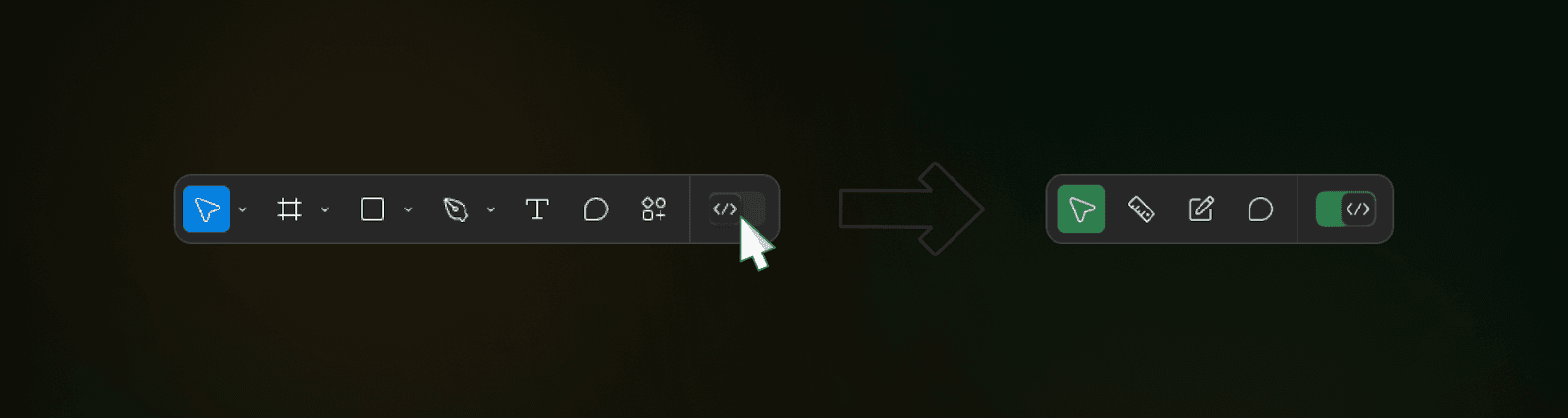
Once activated, it provides a dedicated interface that allows developers to inspect design specifications.
By hovering over any design element, you can access detailed information such as:
- Font (name, size, weight).
- Color (in HEX, RGB, or HSL formats).
- Spacing relative to neighboring elements.
- Shadow styles and border radii.
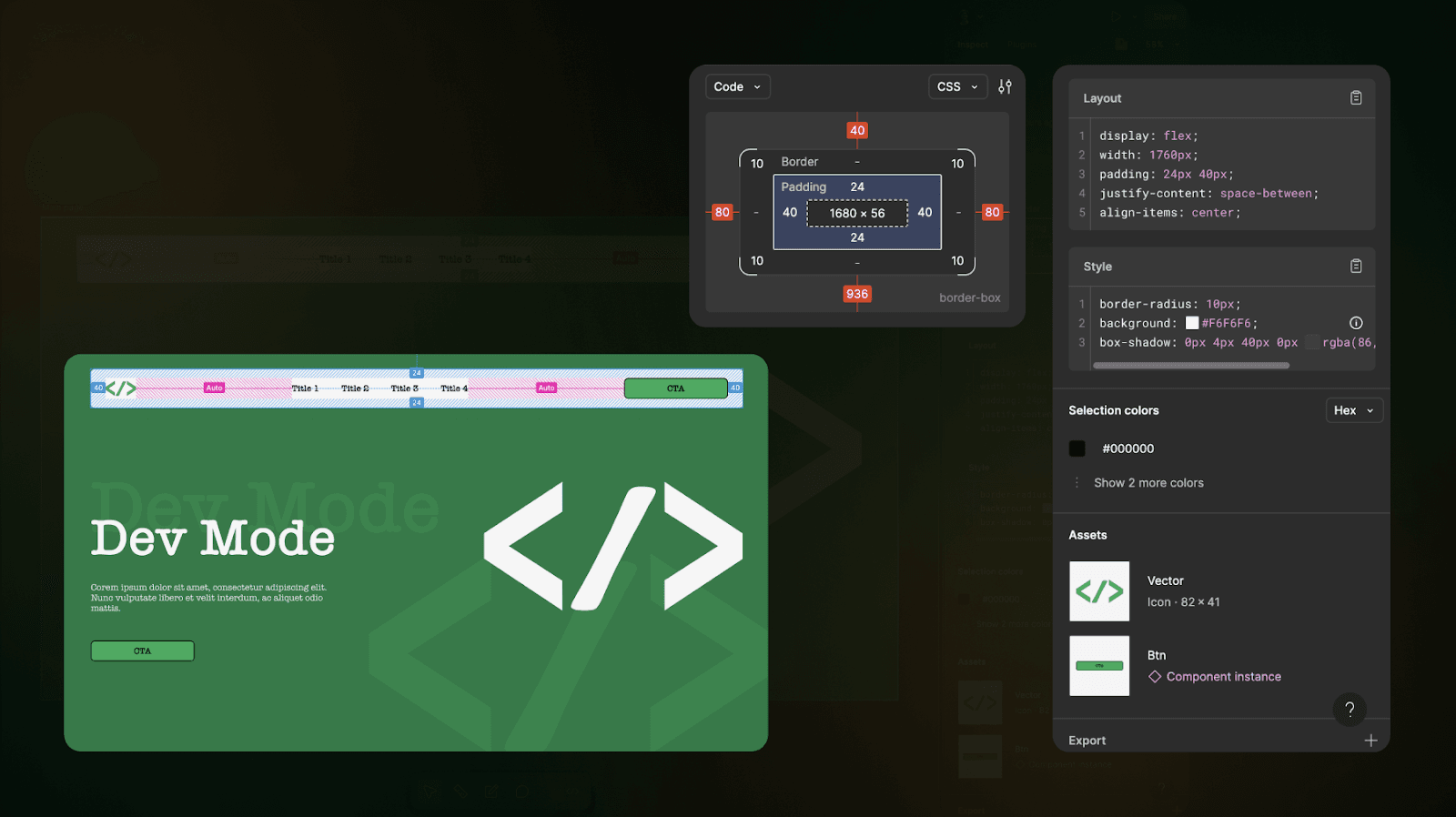
All this information can be exported in a convenient code format, making it particularly useful for adapting designs across multiple platforms.
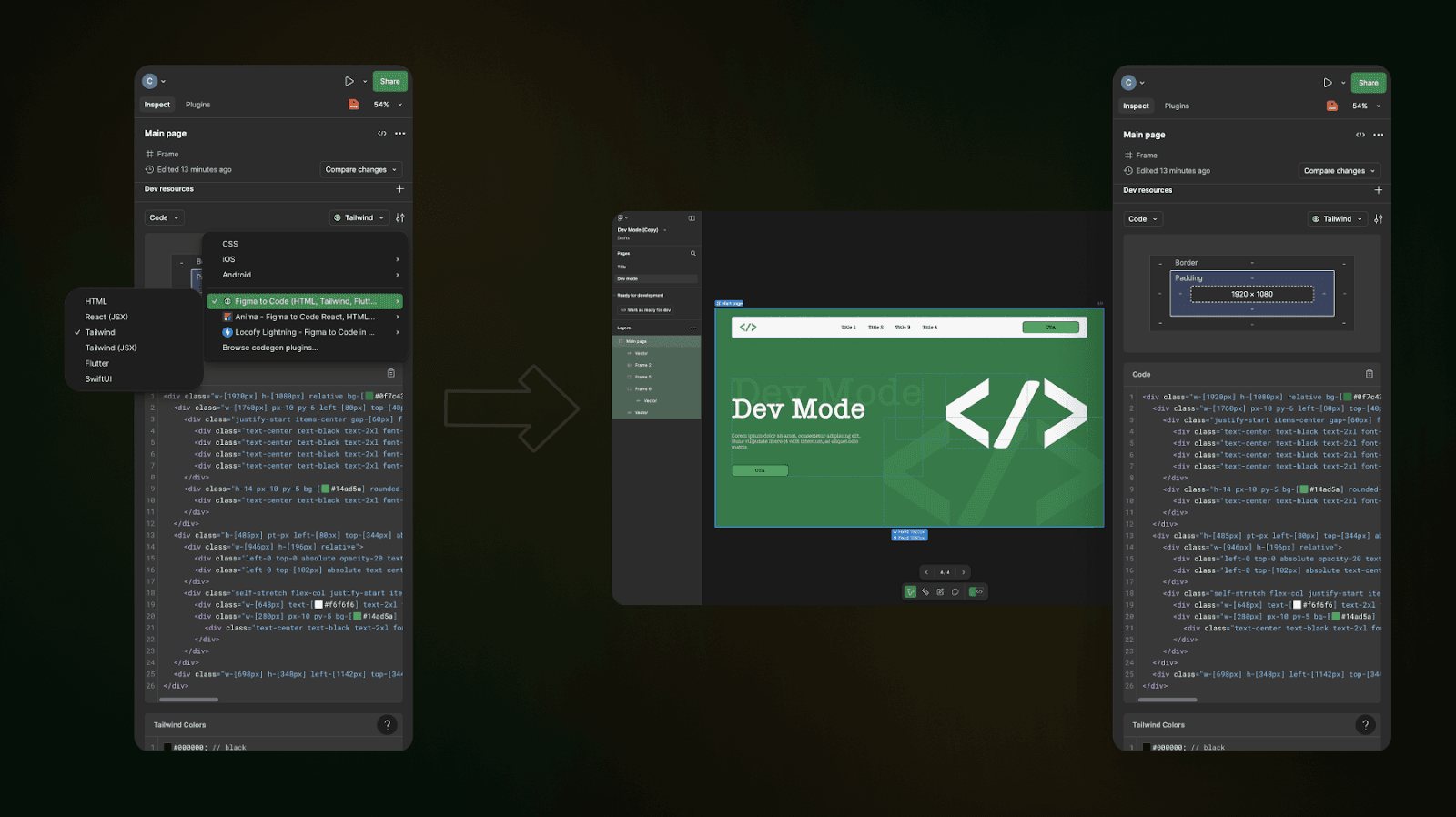
One of the most significant features of Dev Mode is the ability to export code. You can choose the format based on your target platform:
- CSS – For web applications.
- Swift – For iOS development.
- Kotlin – For Android development.
For teams working with design systems, Dev Mode is invaluable. It allows them to view all components and their variants (e.g., different button states such as default, hover, active, disabled) and properties, making it easy to integrate them into UI libraries like Storybook.
Use Cases: Dev Mode in Action
Working with Animations and Interactive Elements
Figma supports animation prototyping. Dev Mode lets developers extract animation duration, easing-functions, and even view keyframes.
Additionally, Dev Mode helps analyze interactive elements. For instance, in a multi-page design, developers can see how pages are linked, generate routes for a router, or extract menu structures. If a designer has added a hover animation for a button, you can quickly retrieve its parameters:

button:hover {
transition: background-color 0.1s ease;
background-color: #107C41;
}
Cross-Platform Consistency
Imagine you’re developing a web interface. Dev Mode allows you to export styles for each platform separately while maintaining a unified design approach. For example, heading styles can be exported in a format suitable for Tailwind, while button fonts and colors are automatically converted to the appropriate syntax depending on the chosen platform. This significantly reduces manual adaptation time.
Optimizing Design Systems
For teams using design systems, Dev Mode is a game-changer. It automatically identifies components such as buttons, forms, and cards, displaying their properties, inherited styles, and variants. This allows developers to quickly integrate ready-made components into the codebase.
Integration with Other Tools
API and Plugins
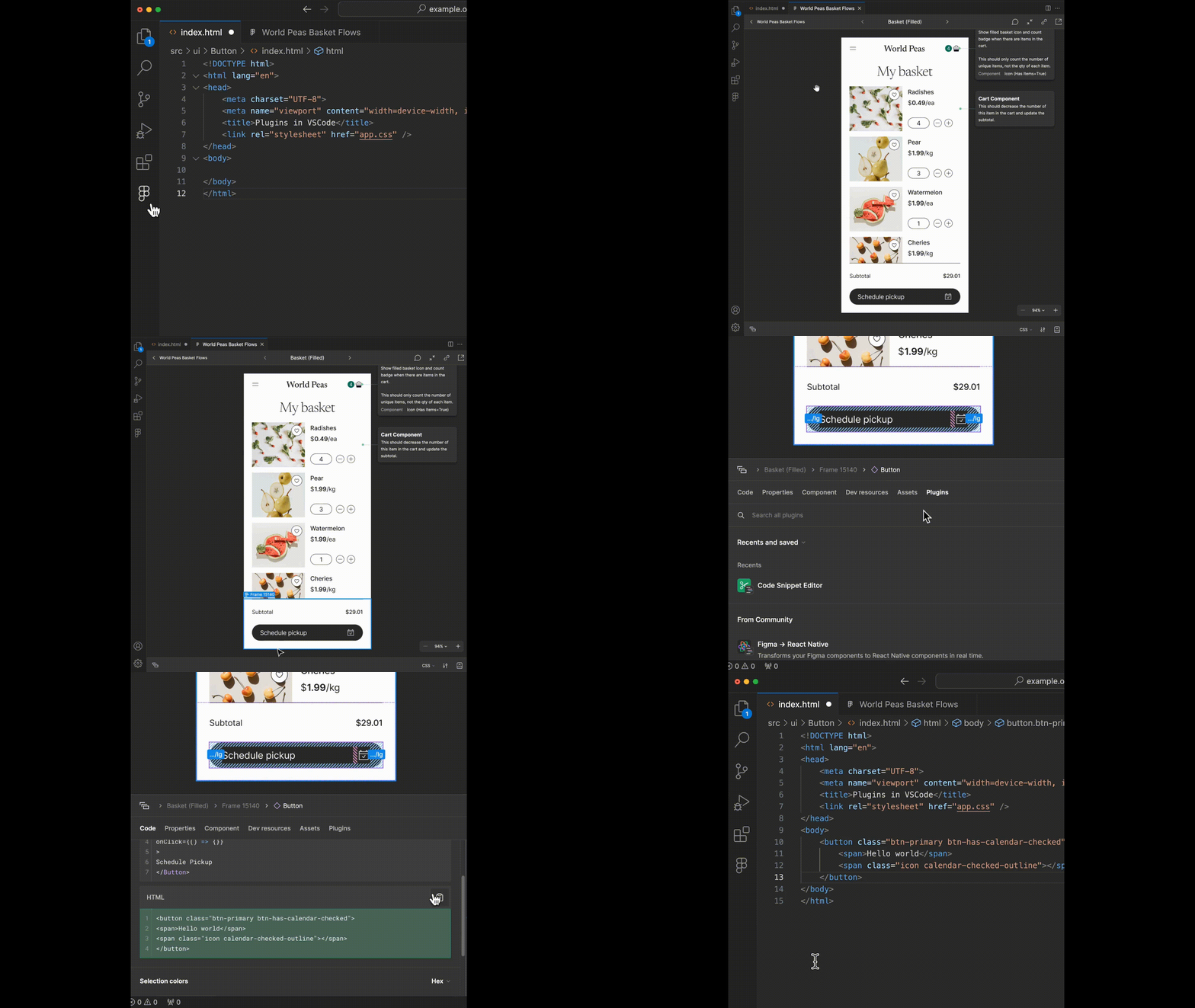
Dev Mode seamlessly integrates with other tools like Zeplin, VS Code, Storybook, and even GitHub. For example, a designer can create a layout in Figma, and Dev Mode will automatically generate specifications for developers in a format that integrates easily into the existing codebase. It can also generate comments for Pull Request, describing style or component changes.
Integrating Dev Mode with VS Code allows for quick transitions between design and code by copying CSS properties and elements directly from Figma, significantly boosting efficiency.
Design Systems Compatibility
If a team uses a custom design system, Dev Mode helps maintain consistency. Components created in Figma can be transferred into code with minimal modifications.
Final Thoughts
Dev Mode in Figma offers several key advantages:
- Efficient frontend development – Quick access to styles and components saves time and allows developers to focus on functionality.
- Backend integration – In complex systems, Dev Mode helps correctly adapt designs to different APIs and data structures.
- Error reduction – Automating design handoff minimizes style-related mistakes, which is crucial for large projects.
Ultimately, Dev Mode in Figma is the key to faster, more precise, and more efficient collaboration between designers and developers. By integrating it into your development workflow, you’ll see a noticeable improvement in both quality and speed.